

8 Claude Prompts to Create Professional PowerPoint Slides Faster
Discover 8 Claude prompts to plan, structure, write, design and turn your presentation into a professional slide deck faster.
Say goodbye to building PowerPoint decks from a blank slide.
In the past, creating a professional presentation meant doing everything manually: defining the outline, organizing the flow, writing slide titles, drafting bullet points, choosing visuals, designing the structure, preparing speaker notes and editing each slide until it looked concise enough.
That process can take hours or even days, especially if the deck is for clients, pitching, training or management reporting.
Claude can shorten that workflow significantly.
Claude can now create and edit PowerPoint .pptx files in supported environments. Claude for PowerPoint is also designed to help users build new slides from natural language descriptions, edit specific slides, convert bullets into diagrams or charts and work with existing templates.
The key is not to ask:
“Create a presentation about AI.”
That prompt is too vague.
If you want a strong slide deck, you need to break the presentation process into clear steps: goal, audience, message, flow, storytelling, visual direction, slide content, speaker notes and final output.
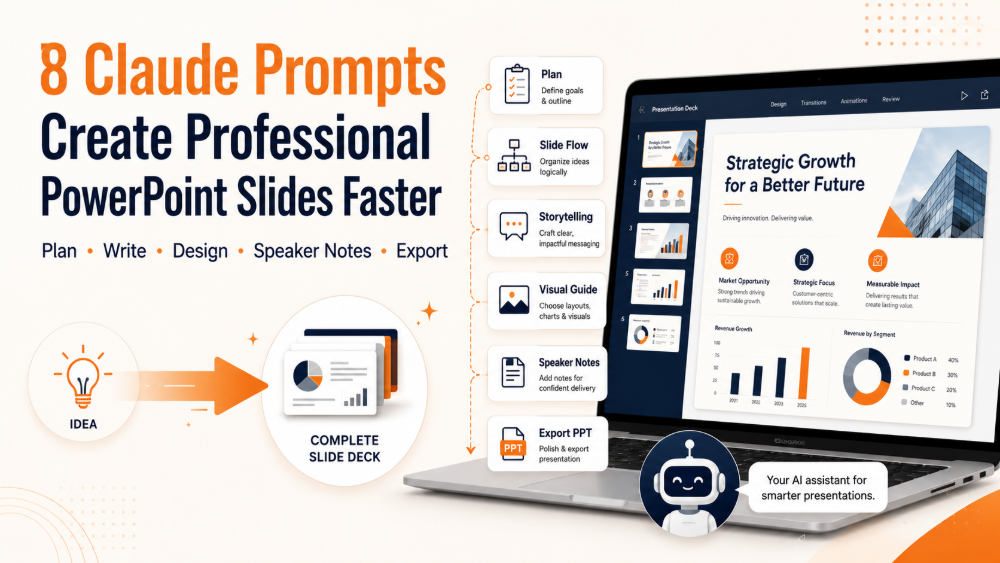
Here are 8 Claude prompts you can use to automate the presentation-building process from start to finish.
Why Claude Can Help You Build Slides Faster
A good slide deck is not just a collection of nice-looking pages.
A strong presentation needs:
- A clear goal
- A specific audience
- A memorable core message
- A logical flow from beginning to end
- One main idea per slide
- Visuals that support the content
- Speaker notes for natural delivery
- A clear conclusion and call to action
Claude is useful because it can help across multiple steps: analyzing the topic, organizing ideas, reducing text, creating slide structure, suggesting visuals and writing speaker notes. With file creation features, Claude can also create PowerPoint, Word, Excel and PDF files in supported environments.
In other words, Claude does not only help you “write slides.”
It helps you build a presentation workflow.
1. Create a Presentation Plan
Before writing slides, start with the plan.
Many weak decks fail because the creator jumps directly into content without defining the purpose. Is the presentation meant to persuade, teach, report, sell or inspire?
Prompt:
Play the role of a presentation consultant.
Build a plan for a presentation on [topic].
Determine:
- Presentation goal
- Target audience
- Core message
- Content flow between slides
- Number of slides suitable
The structure should be logical, engaging, and professional.
When to use it
Use this when you have a topic but do not yet know how to structure the deck.
Example:
Play the role of a presentation consultant.
Build a plan for a presentation on “How AI tools can improve productivity for small business teams”.
Determine:
- Presentation goal
- Target audience
- Core message
- Content flow between slides
- Number of slides suitable
The structure should be logical, engaging, and professional.
2. Structural Design & Slide Flow
Once you have the plan, design the detailed flow for each slide.
Prompt:
Design the detailed structure for each slide of the presentation about [topic].
For each slide:
- Write a clear title
- Explain the purpose of the slide
- Ensure a smooth content flow from start to finish
The goal is to make the presentation natural, easy to follow, and persuasive.
Why this matters
A professional deck should move smoothly. The audience should understand why one slide follows the previous one and how it prepares them for the next slide.
Good flow prevents the presentation from feeling like a random collection of points.
3. Turn the Presentation into a Story
Strong presentations do not just deliver information. They tell a story.
Prompt:
Convert the topic [topic] into a presentation following a clear storytelling structure including:
- Introduction
- Problem
- Awareness
- Solution
- Conclusion
Make the presentation engaging yet professional and informative.
Storytelling makes the deck more persuasive
Instead of starting with definitions, you can begin with the real-world problem:
- What is the audience struggling with?
- Why is the old way no longer working?
- What makes change necessary?
- How does your solution create a better outcome?
This turns an informational deck into a persuasive presentation.
4. Image & Visual Design Guide
A common mistake is writing all the content first and thinking about visuals later.
A better approach is to ask Claude for visual direction alongside the content.
Prompt:
Professional design style suggestions for each slide in the presentation about [topic].
Suggestions:
- Suitable layout
- Graphics style
- Illustration diagram
- Icon
- Image components
The goal is to increase clarity, modernity, and create a minimalist, professional feel.
What Claude can suggest
Claude can recommend:
- Which slides need timelines
- Which slides need comparison layouts
- Which slides should use charts
- Which slides work better with process diagrams
- Which slides need icon grids
- Which slides should use before/after visuals
This helps you avoid text-heavy slides.
5. Create Custom Content for Each Slide
Once the plan and flow are clear, ask Claude to write the slide content.
Prompt:
Please write the entire content for each slide in the presentation about [topic].
Requirements:
- Concise content
- Easy to present
- Professional
- Focus on key points
Target audience:
[Describe your target audience]
Tip for better output
Describe the audience clearly.
Example:
Target audience:
Startup founders and small business owners who are interested in AI tools but do not have technical backgrounds. They need practical examples, simple language, and clear business benefits.
The clearer the audience, the more relevant the content.
6. Edit Slides to Make Them Clearer & More Concise
Slides should not contain too much text.
After Claude drafts the content, ask it to simplify and optimize the slide copy.
Prompt:
Review the content of this presentation and rewrite it in an optimal style for slides.
Requirements:
- Reduce excess text
- Highlight the main idea
- Increase clarity
- Each slide conveys a single main idea
Content:
[insert your content]
The key rule
A good slide should answer one question:
“What should the audience remember after this slide?”
If there are too many ideas, split the slide or move the explanation into speaker notes.
7. Create Speaker Notes & Presentation Script
A good deck is not enough. You also need to know what to say.
Prompt:
Based on the content of the presentation about [topic], create a Speaker Notes section for each slide.
Each slide should include:
- How to start speaking
- A brief explanation of the main points
- A transition to the next slide
- Examples or insights to make the presentation more natural
The tone should be professional, confident, and easy to present in front of the audience.
Why speaker notes matter
Speaker notes help you:
- Avoid reading directly from the slide
- Speak more naturally
- Transition smoothly
- Add examples when needed
- Present with more confidence
For training decks, sales decks and pitch decks, speaker notes can make a major difference.
8. Convert the Entire Presentation into a Complete File
After you have the plan, flow, content, visual guide and speaker notes, ask Claude to prepare the complete version.
Prompt:
Play the role of a presentation expert.
Based on all the content you have built, create a complete set of slides ready to export to PowerPoint or Google Slides.
Requests:
- Clear slide structure
- Short and accurate slide content
- Suggested layout for each page
- Suitable illustration suggestions
- Synchronized design style
- Attractive title for each slide
- Smooth and professional presentation flow
The output needs to be in a format that is easy to copy to AI tools to create slides or presentations.
Recommended output format
Ask Claude to structure the result like this:
Slide 1:
Title:
Subtitle:
Main content:
Visual suggestion:
Speaker notes:
Slide 2:
Title:
Main content:
Visual suggestion:
Speaker notes:
If your Claude environment supports direct file creation, you may also ask it to create a .pptx file. Anthropic Help Center states that Claude can create PowerPoint .pptx files in supported environments with file creation enabled.
Complete Workflow: From Idea to Slide Deck
Use this 8-step workflow:
- Create the presentation plan
- Design the slide flow
- Turn the topic into a story
- Suggest visual design direction
- Write content for each slide
- Make the slide content clearer and shorter
- Create speaker notes
- Prepare the complete output for slide creation
This helps you stop building PowerPoint by guessing slide by slide.
Instead, you get a clear system for turning ideas into a professional deck.
Mistakes to Avoid When Using Claude for Slide Creation
Claude can speed up the process, but you still need quality control.
Avoid these mistakes:
- Using vague prompts
- Not defining the audience
- Not explaining the presentation goal
- Putting too much text on each slide
- Skipping visual direction
- Skipping speaker notes
- Not checking data and sources
- Using a template that does not match your brand
- Copying the first output without editing
Claude can help you create a strong draft faster. But the final deck should still be reviewed for audience, purpose and delivery context.
Conclusion: Claude Does Not Replace Presentation Thinking, But It Makes Slide Creation Much Faster
PowerPoint is not going away. But the way we create PowerPoint decks is changing.
Instead of starting from a blank slide, you can use Claude to plan the deck, structure the flow, write the content, create a story, suggest visuals, shorten slide text and prepare speaker notes.
If file creation or Claude for PowerPoint is available in your account, Claude can also help create or edit PowerPoint files directly.
The difference is not whether you use AI.
The difference is whether you know how to turn presentation creation into a clear workflow.
With these 8 prompts, you do not just make slides faster.
You make them clearer, more structured and more professional.
CTA
The next time you need to build a presentation, do not start from a blank PowerPoint slide. Start with Claude: define the goal, audience, core message and slide flow first. Then use the 8 prompts in this guide to turn your idea into a structured, easy-to-present and professional slide deck.