
Image Resizer — Resize by Pixels or % in Your Browser (JPEG/PNG/WebP)
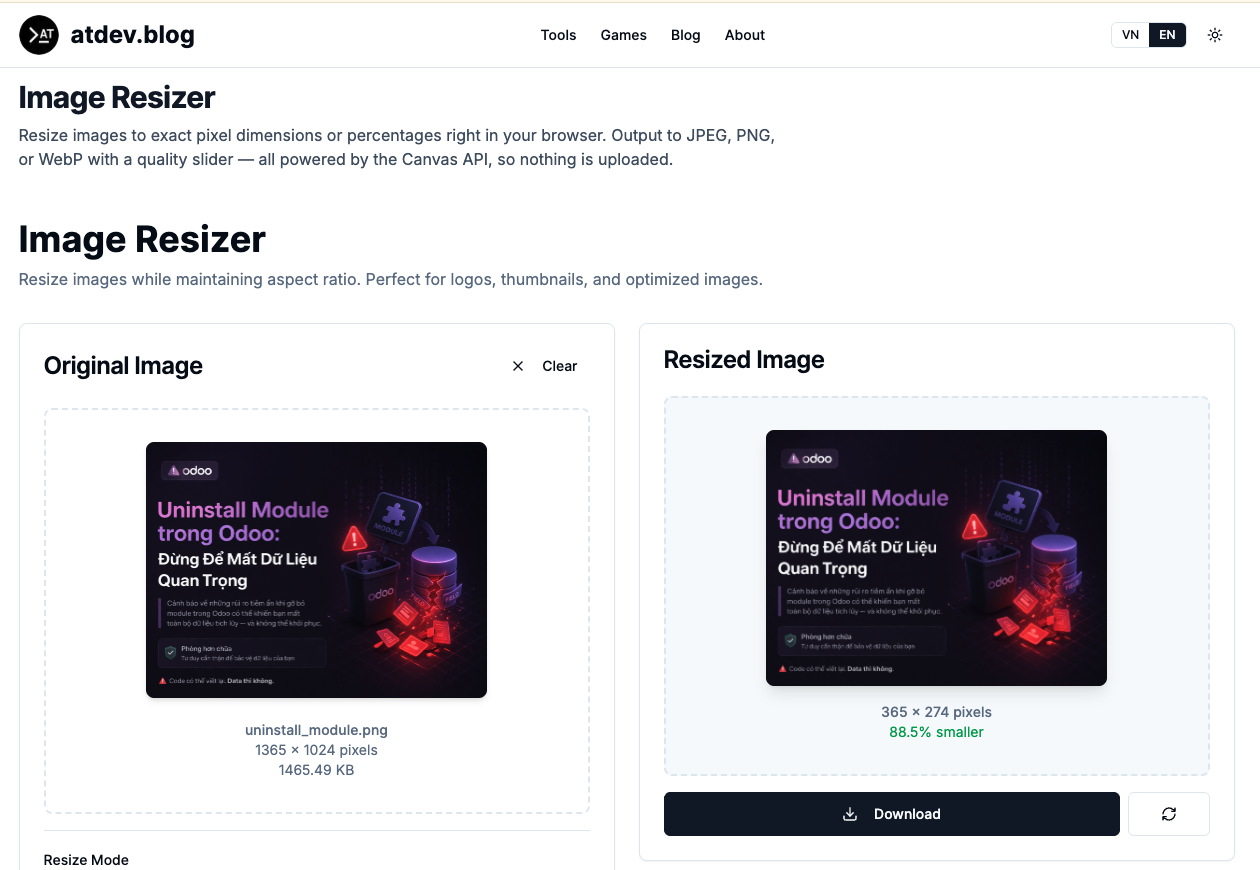
Resize images to exact pixel dimensions or percentages in your browser. Export JPEG, PNG, or WebP with a quality slider—powered by the Canvas API, so nothing is uploaded.
Most “image problems” aren’t creative—they’re logistical. You need a file that fits the slot: a social preview, a blog hero, a product thumbnail, an email header. You also need the file to stop being enormous without turning into a blurry mess.
An image resizer should be fast, predictable, and private enough for everyday work. Ours runs in your browser using the Canvas API: set exact pixel dimensions or rescale by percentage, then export JPEG, PNG, or WebP with a quality slider so you can balance clarity and file size. And because processing stays client-side, nothing needs to be uploaded to our servers for the resize workflow.
https://atdev.blog/tools/image-resizer
Why sizing is a performance and UX lever—not a vanity step
Web performance
Oversized images are one of the easiest ways to accidentally ship a slow page. Resizing to something closer to the real display size is a high-impact optimization you can do before you even touch caching strategies.
Platform requirements
Many surfaces expect specific dimensions. Feeds, link previews, and ad placements punish “random aspect ratios” with awkward crops. Precision beats guessing.
Privacy for real-world assets
Not every image belongs in a third-party pipeline—internal screenshots, client materials, personal IDs (even redacted), or pre-release creative. Local processing reduces unnecessary exposure.
Pixels vs percentages: pick the mental model that matches the task
Use pixels when the spec is rigid
If the brief says 1200×630, pixels are the language of truth. You want to match requirements once, not iterate through trial-and-error scaling.
Use percentages when you want uniform batch logic
“Make everything 70% of the original” is a clean rule for a set of photos from the same shoot—fast, consistent, and easy to reason about.
JPEG vs PNG vs WebP: choose the format that matches the content
JPEG
Great for photos and smooth gradients—quality matters a lot, which is why a slider is more than a nice-to-have.
PNG
Useful when you need transparency or crisp edges (UI shots, logos on complex backgrounds). Expect larger files than JPEG for the same dimensions in many cases.
WebP
Often a strong web choice when supported: competitive size/quality tradeoffs depending on the image type.
A quality control isn’t “compression cosplay”—it’s how you stop exporting too heavy or too ugly.
What Canvas API implies (without turning this into a computer science lecture)
Browser-based resizing typically redraws the image onto a canvas at the target size, then re-encodes into your chosen format. Benefits:
- Low friction: no installs, no upload queue.
- Local-first feel: your bytes stay on-device for the processing step.
Keep originals when it matters—upscaling can’t invent real detail, and repeated lossy exports can accumulate artifacts.
Quick preflight before you export
- Know the display target (1x vs retina expectations).
- Decide if you need alpha transparency.
- Confirm whether you need resize-only vs reframing (crop may be a separate step).
- Zoom to 100% and check text edges and fine textures after compression.
Conclusion
Resizing is one of those small tools that pays rent daily: lighter pages, cleaner previews, and fewer “can you send a smaller file?” emails. When you can control dimensions, format, and quality in the browser—without uploading your image—you move faster with fewer tradeoffs than you’d expect.
https://atdev.blog/tools/image-resizer
1) What does an online image resizer do?
It changes an image’s width and height—often to exact pixels or a percentage scale—so the file better matches where it will be displayed.
2) What’s the difference between JPEG, PNG, and WebP output?
JPEG is typically best for photos; PNG supports transparency and crisp edges; WebP is often efficient for web delivery when supported by the target platform.
3) What does “powered by the Canvas API” mean?
It means the browser can render and re-encode the image locally, commonly enabling client-side resizing without uploading the file to a server.
4) Will resizing reduce image quality?
Reducing dimensions discards detail; lowering JPEG/WebP quality increases compression artifacts. The goal is to find an acceptable balance for your use case.
5) Should I resize by pixels or percentages?
Use pixels when you must meet exact specifications; use percentages when you want proportional scaling across multiple images.
6) Can resizing improve website speed?
Yes—using appropriately sized images reduces download size and often improves loading performance, especially on mobile networks.