
Markdown to Word Converter — Export .docx with Headings, Lists, Tables, Code & Images
Convert Markdown documents into Microsoft Word (.docx) with preserved headings, lists, tables, code blocks, and images. Paste or upload Markdown and download a cleanly styled Word file.
Markdown is a great writing format: fast to type, easy to diff, and friendly to keep content separate from presentation. But the world still runs on Microsoft Word. Clients want .docx. Legal wants .docx. Academic committees want .docx. Managers want comments and track changes.
The painful part is the handoff. If you copy from a Markdown preview into Word, you can lose the things that made your document readable in the first place: heading hierarchy, list structure, tables, code formatting, and images that should stay anchored to the right sections.
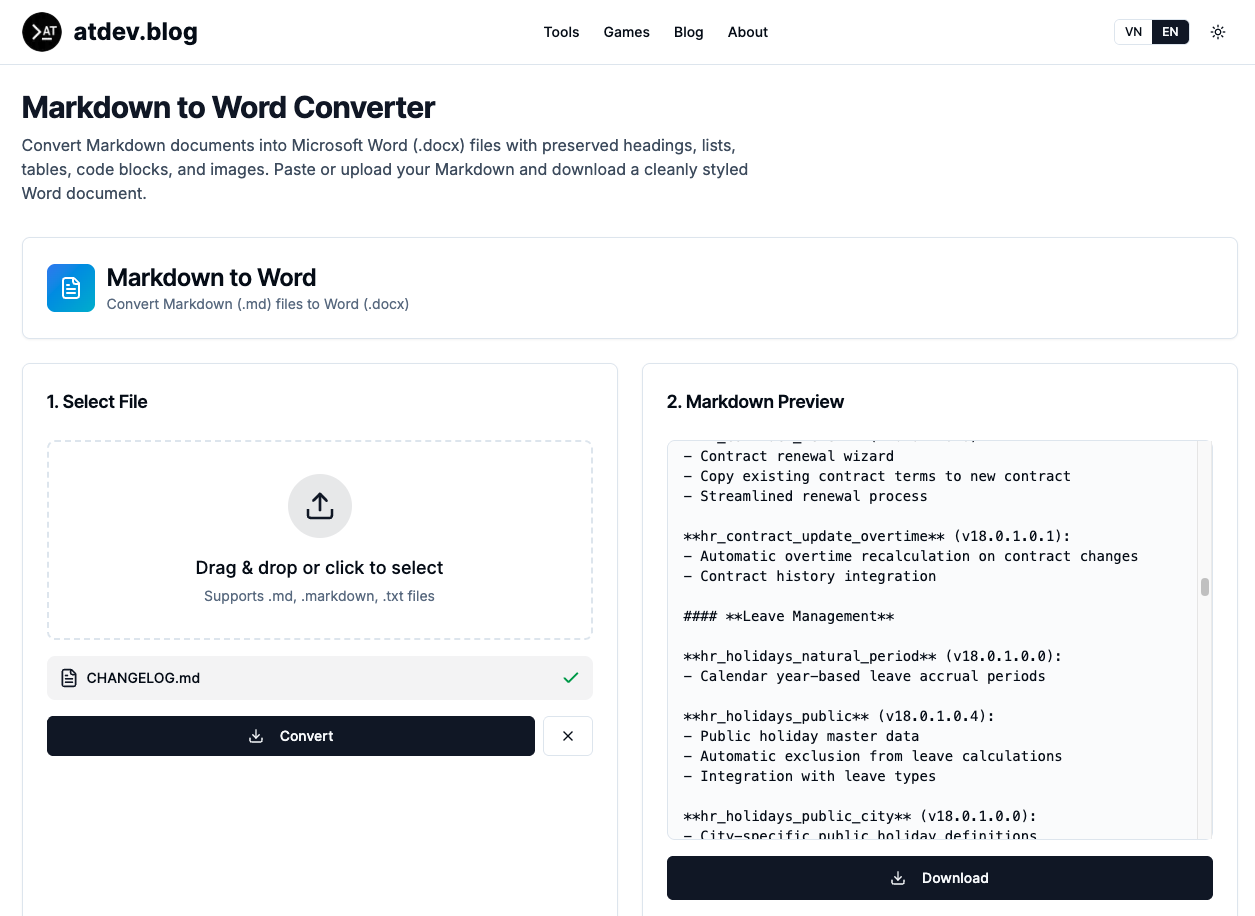
A Markdown to Word converter exists to close that gap: paste or upload Markdown, get a cleanly structured Word document you can edit immediately—without rebuilding the skeleton manually.
https://atdev.blog/tools/md-to-word
Why conversion beats “hope Word understands this”
Word keeps improving, but teams don’t all run the same versions, templates, or workflows. When you need a predictable .docx for approvals, templates, or archival, a dedicated conversion step is often the least risky path—especially for long docs where small formatting errors compound.
What “preserved structure” should mean in practice
Headings
Your outline is the navigation system. If H1/H2/H3 map cleanly to Word heading styles, Tables of Contents and professional structure become trivial.
Lists
Numbered lists aren’t cosmetic—they carry meaning in specs and proposals. Preserving list semantics beats turning everything into plain paragraphs.
Tables
Tables are where manual copy/paste breaks first. A good export should land a usable grid in Word so you edit content—not redraw borders for an hour.
Code blocks
Technical writing depends on monospace blocks, wrapping, and readability. Converting with intent beats pasting code as “styled guesswork.”
Images
Docs aren’t complete without diagrams and screenshots. Embedding images in the exported Word file is what makes the document shareable, not just “text with dead links.”
A practical workflow: from Markdown draft to stakeholder-ready Word
- Finish the draft in your Markdown editor of choice.
- Validate image references (paths/URLs depending on your setup).
- Paste or upload into the converter.
- Download .docx, sanity-check headings, lists, and tables in Word.
- Apply your corporate template or run final pagination as needed.
Run that loop in one place — https://atdev.blog/tools/md-to-word
When you should still polish in Word (and that’s normal)
- Branded templates (fonts, headers, styles)
- Footnotes/citations requirements that vary by institution
- Print layout (page breaks, cover pages, front matter)
The goal isn’t “perfect automation every time.” The goal is to arrive at 80–90% correct structure instantly, then spend your time on judgment work—not retyping.
Quick tips to avoid surprises
- Extremely nested tables or exotic Markdown extensions may need simplification.
- Very long code blocks may need post-export adjustments for page width.
- Large images can inflate file size—optimize before embedding when email size matters.
Conclusion
Markdown is an excellent source format; Word remains a universal delivery format. The right converter is the bridge: keep your writing workflow, meet your audience where they are, and stop paying the “formatting tax” on every deliverable.
https://atdev.blog/tools/md-to-word
1) What is a Markdown to Word converter?
It’s a tool that converts Markdown text into a Microsoft Word .docx file, aiming to preserve document structure such as headings, lists, tables, code blocks, and embedded images.
2) Will headings become a Word Table of Contents automatically?
If headings map to Word heading styles, you can generate a Table of Contents in Word quickly. Exact behavior may depend on the converter output and your Word template.
3) Do code blocks convert well to Word?
Generally yes for standard fenced code blocks, typically using monospace formatting; very wide code may still need manual wrapping adjustments depending on layout.
4) How do images work when converting Markdown to Word?
Images referenced in Markdown are typically embedded into the .docx when paths or URLs resolve correctly; broken references may appear as missing images.
5) Is the output editable in Microsoft Word?
Yes—.docx is meant to be edited, commented on, and shared using Word’s collaboration features.
6) Should I upload a file or paste Markdown?
Paste is fastest for short docs; upload is often better for larger files and consistent asset references, depending on your project structure.