
Text Cleaner & Formatter — Clean and Transform Text in One Click
Clean and format pasted text instantly: trim extra whitespace, change case, sort & deduplicate lines, strip special characters — tidy data for spreadsheets, CMS, and code.
If you’ve ever pasted a list from a PDF, a spreadsheet, or a web page and ended up with weird spacing, blank lines, duplicated entries, or stray symbols—you’re not doing anything wrong. That’s just what happens when text moves between formats. A text cleaner & formatter helps you normalize messy paste into something you can confidently reuse in a spreadsheet, CMS, doc, or codebase—without hand-fixing every line.
https://atdev.blog/tools/text-cleaner
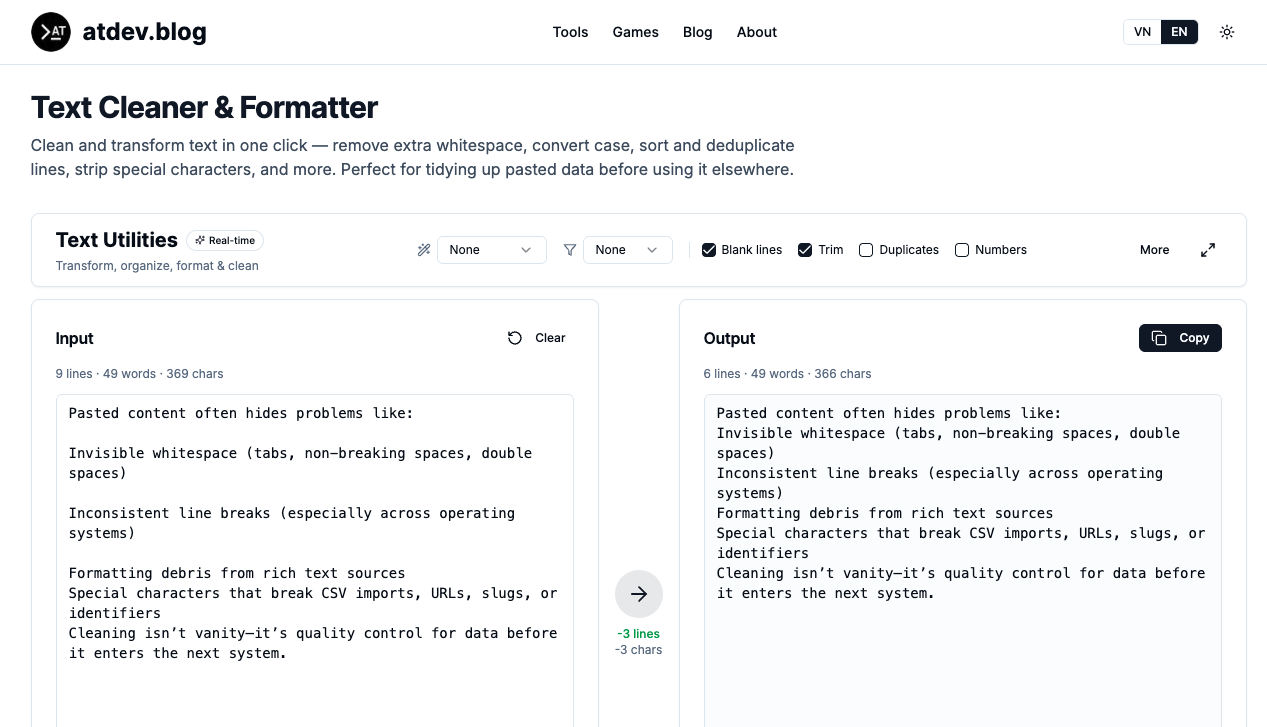
Why “clean text” matters before you reuse it
Pasted content often hides problems like:
- Invisible whitespace (tabs, non-breaking spaces, double spaces)
- Inconsistent line breaks (especially across operating systems)
- Formatting debris from rich text sources
- Special characters that break CSV imports, URLs, slugs, or identifiers
Cleaning isn’t vanity—it’s quality control for data before it enters the next system.
What a one-click cleaner/formatter actually does
“One click” usually means one streamlined workflow that bundles common steps, so you’re not bouncing between manual find/replace operations. Typical capabilities include:
Trim and normalize whitespace
Collapse repeated spaces, remove leading/trailing spaces on each line, and optionally tighten up extra blank lines when you need a compact list.
Change text case
Switch to uppercase, lowercase, or title case to match naming conventions for labels, tags, or standardized datasets.
Sort lines
Turn an unordered grab-bag of items into a sorted list that’s easier to scan, compare, or merge.
Deduplicate lines
Remove duplicates so you don’t publish redundant tags, import repeated SKUs, or inflate keyword lists.
Strip or filter special characters
Keep only “safe” characters for slugs/IDs, or remove symbols that cause tooling issues—depending on your target format.
Combine steps in a sensible order
The real power is a repeatable recipe—for example: trim → lowercase → sort → unique.
Who gets the most value?
- Ops and office workflows: Clean lists before they land in spreadsheets.
- Content and SEO teams: Tidy keyword/tag lists and drafts without hidden formatting surprises.
- Developers: Quickly normalize sample strings, logs, and test inputs.
- Students: Turn messy excerpts into clean bullet lists.
Practical tips (so you don’t regret a “too aggressive” clean)
- Know the destination: CSV rules differ from CMS fields differ from code strings.
- Keep an original copy before running strong filters like dedupe or stripping.
- Fix line breaks/spacing first if you’re seeing odd characters after paste.
- Consistency beats cleverness: one stable rule set prevents downstream errors.
Conclusion
A solid text cleaner isn’t about making text “pretty”—it’s about making it predictable. When your paste is trimmed, consistently cased, sorted, deduped, and stripped of problematic symbols, you spend less time troubleshooting imports and more time shipping the actual work.
https://atdev.blog/tools/text-cleaner
FAQ 1 — What is a text cleaner and formatter?
A text cleaner and formatter is a tool that helps you normalize pasted text by trimming extra whitespace, standardizing line breaks, changing case, sorting lines, removing duplicates, and stripping unwanted special characters.
FAQ 2 — Why does pasted text look messy (extra spaces/weird breaks)?
Different apps encode spaces and line endings differently; rich text can also carry hidden formatting. When you copy between PDFs, browsers, and documents, those hidden characters often come along for the ride.
FAQ 3 — Is it safe to deduplicate lines automatically?
It’s safe if duplicates truly represent the same item. Always keep a backup before deduping, because legitimate repeats (e.g., repeated transactions) can be removed if you apply dedupe to the wrong dataset.
FAQ 4 — What’s a good default cleaning order?
A practical default is: trim whitespace → normalize line breaks → (optional) change case → sort → dedupe → strip special characters (only if needed for your destination format).
FAQ 5 — Can cleaning text improve SEO workflows?
Yes—cleaner lists reduce mistakes in tag/keyword management and make content operations faster, though cleaning tools don’t replace sound SEO strategy.
FAQ 6 — Will stripping special characters change meaning?
It can—especially for accented letters or punctuation in names. Use character stripping selectively and preview results before exporting.