
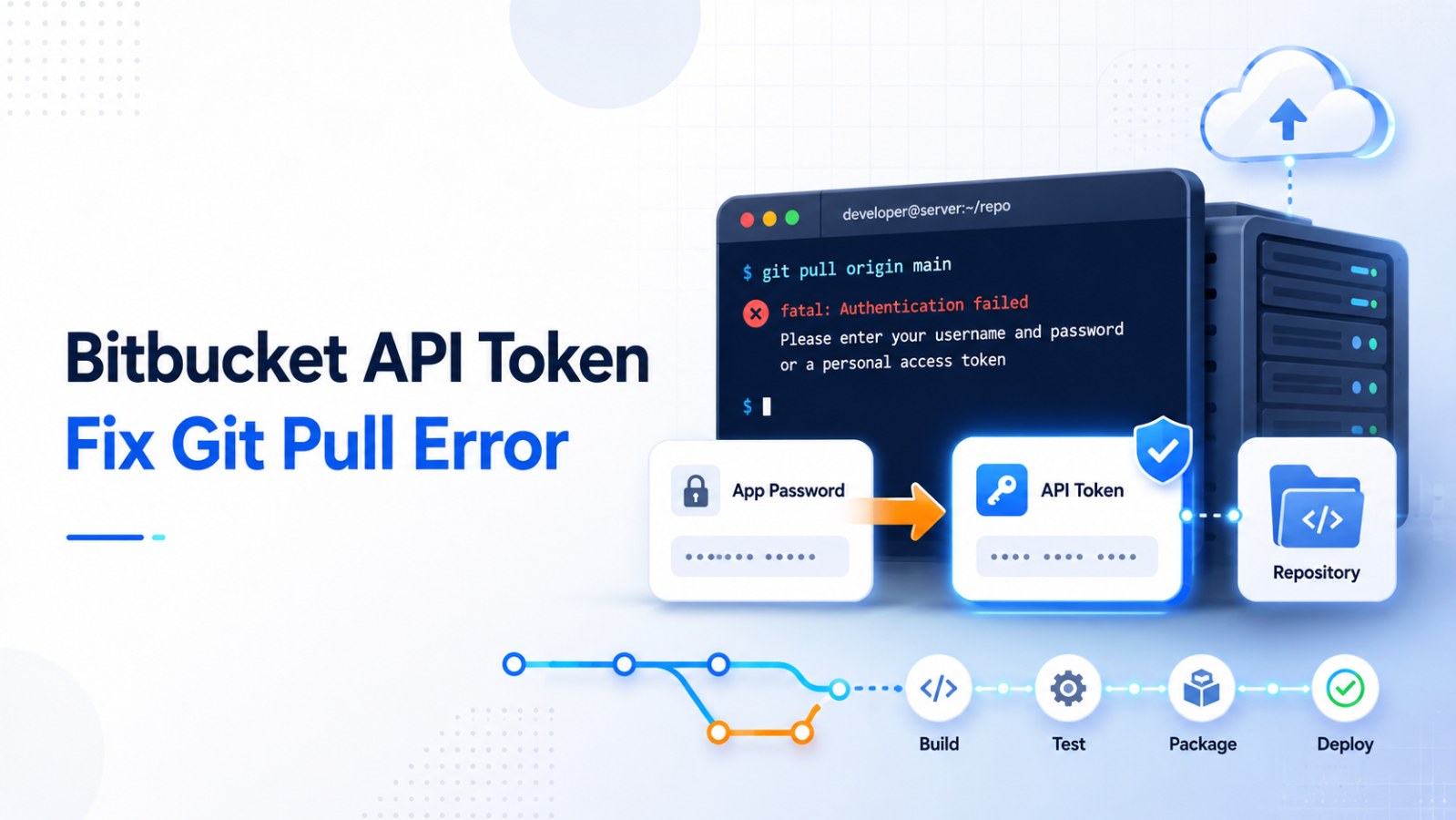
Bitbucket App Password Deprecated: How to Fix Git Pull and Git Push with API Token
Bitbucket App Password deprecated? Learn how to fix git pull, clone, and push HTTPS errors using API Token, Git remote update, SSH, or Repository Access Token.
Introduction: You SSH into the server and git pull suddenly fails
You SSH into a staging or production server to deploy code:
cd /var/www/project
git pull
But instead of pulling the latest code, Git returns this error:
remote: App passwords are deprecated and must be replaced with API tokens.
fatal: unable to access 'https://bitbucket.org/anhtran/atdevblog.git/': The requested URL returned error: 410
Sometimes, you may only see:
fatal: Authentication failed for 'https://bitbucket.org/anhtran/atdevblog.git/'In another case, git pull may work, but git push fails:
git push origin main
fatal: Authentication failed
The most common reason is that your project is still using an old Bitbucket App Password for Git authentication over HTTPS. Bitbucket now expects a scoped API Token, so old credentials may no longer work.
This article explains the problem and shows multiple practical ways to fix it, depending on whether you are using a local machine, Sourcetree, a deployment server, CI/CD, or an automation script.
1. What is the problem?
Common error messages
When running git pull, git clone, or git push, you may see one of these errors:
remote: App passwords are deprecated and must be replaced with API tokens.
fatal: unable to access 'https://bitbucket.org/anhtran/atdevblog.git/': The requested URL returned error: 410
fatal: Authentication failed for 'https://bitbucket.org/anhtran/atdevblog.git/'remote: Invalid username or password
fatal: Authentication failedThese errors usually happen when:
Git is still using an old App Password.
The API Token is missing repository permissions.
The API Token was created from an account that cannot access the repository.
Git, Sourcetree, or the operating system is still using old cached credentials.
2. Main reason
Bitbucket App Password has been deprecated
In the past, Bitbucket allowed developers to use App Passwords instead of the main Atlassian account password.
For example:
git clone https://bitbucket.org/anhtran/atdevblog.gitWhen Git asked for a password, you could paste the App Password.
Now, Bitbucket has moved to API Tokens with scopes. That means you need to create a new token and give it the correct permission.
The API Token must have the correct scope
If you only need to clone or pull code, the token needs this permission:
read:repository:bitbucketIf you need to push code, the token also needs this permission:
write:repository:bitbucketIf your token only has scopes like read:me or read:account, Git still cannot pull or push the repository.
3. Who will be affected?
Developers using local machines
If you clone, pull, or push Bitbucket repositories over HTTPS on your computer, you may get authentication errors when old credentials stop working.
Staging or production servers
If your deployment server uses this command:
git pull origin mainand it was using an old App Password, the deployment may fail.
CI/CD pipelines
CI/CD systems may fail if they still use old App Passwords.
This can affect:
Jenkins
GitHub Actions
GitLab CI
Bitbucket Pipelines
Custom deployment scripts
Composer or private packages
If your PHP project uses Composer to install private packages from Bitbucket, Composer may also fail because the old Bitbucket credential is no longer valid.
4. How to create the correct Bitbucket API Token
Step 1: Open Atlassian Account Settings
Log in with the Atlassian account that has access to the repository.
Go to:
Atlassian Account Settings → Security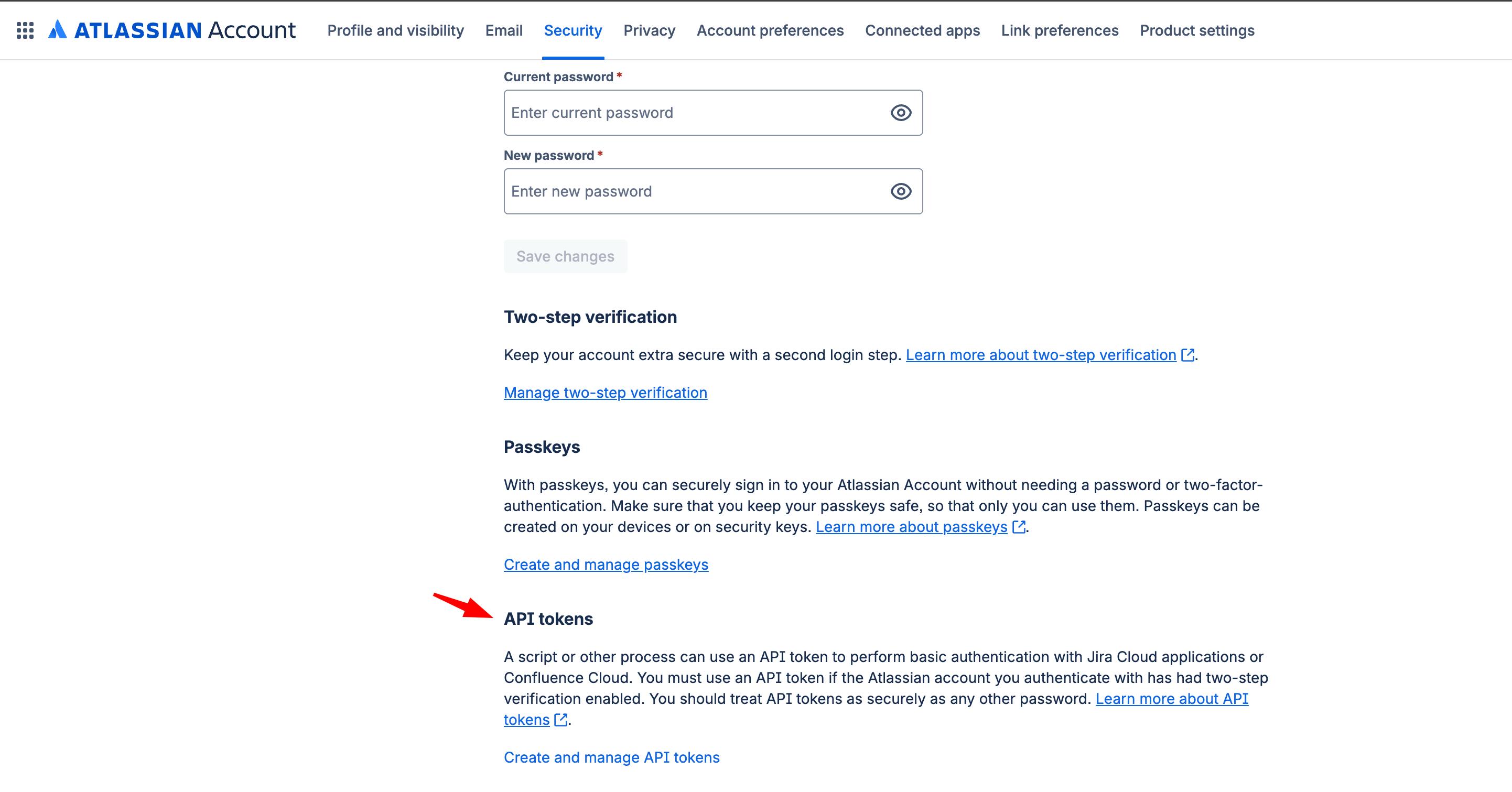
Step 2: Open API Tokens
Inside the Security page, find:
Create and manage API tokensClick it to open the API Token management page.
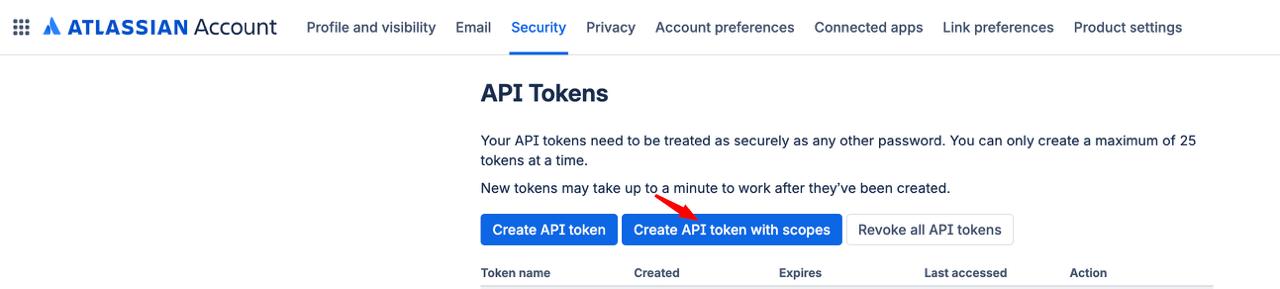
Step 3: Create a scoped API Token
Choose:
Create API token with scopesDo not create a token with unnecessary permissions.
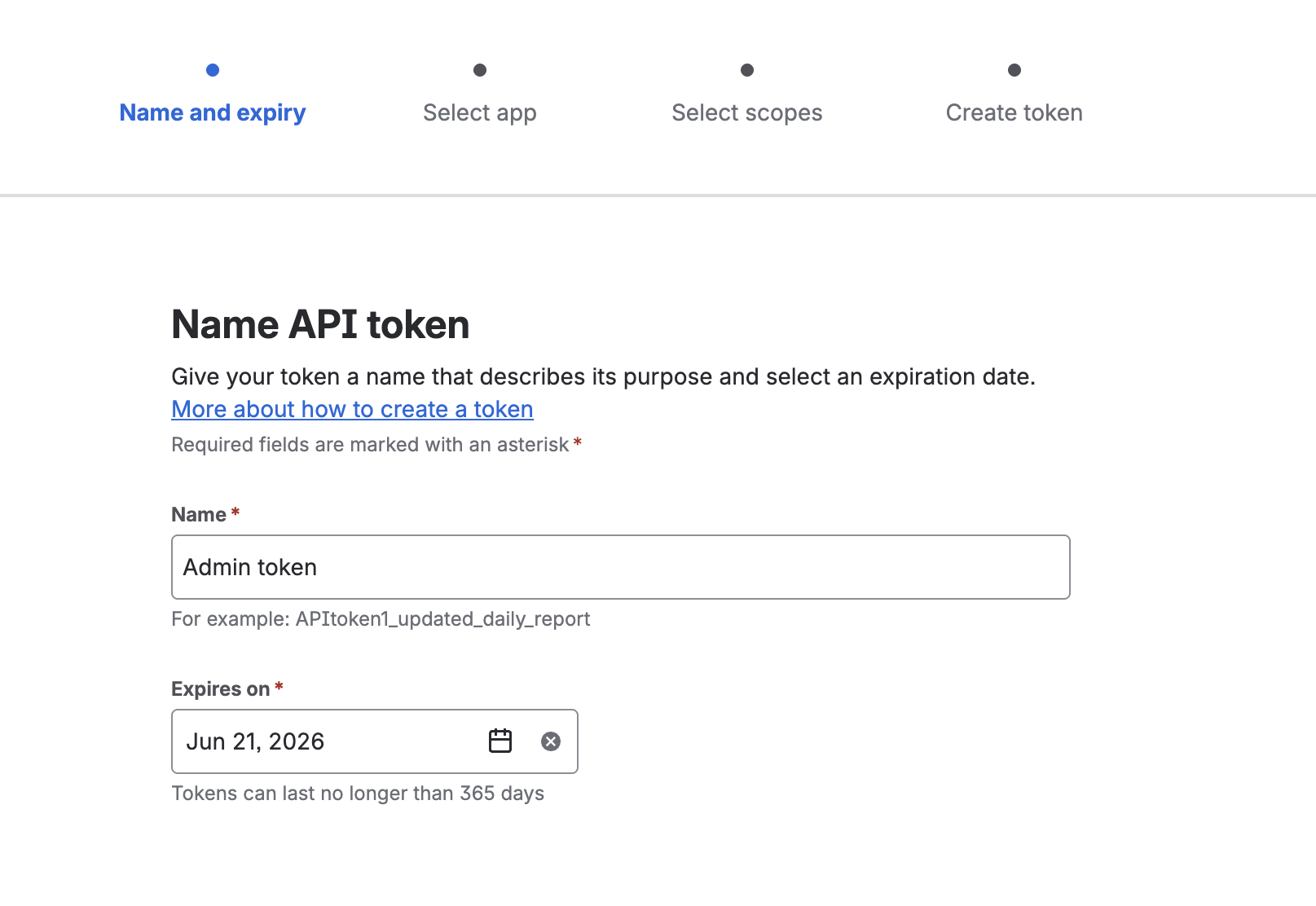
Step 4: Input name and expires on (max is 1 year), and select the app Bitbucket
Step 5: Select the correct scope
If your server or local machine only needs to clone or pull code, select:
read:repository:bitbucketIf you need to push code, select:
read:repository:bitbucket
write:repository:bitbucket
Do not select these permissions unless you really need them:
admin:repository:bitbucket
delete:repository:bitbucket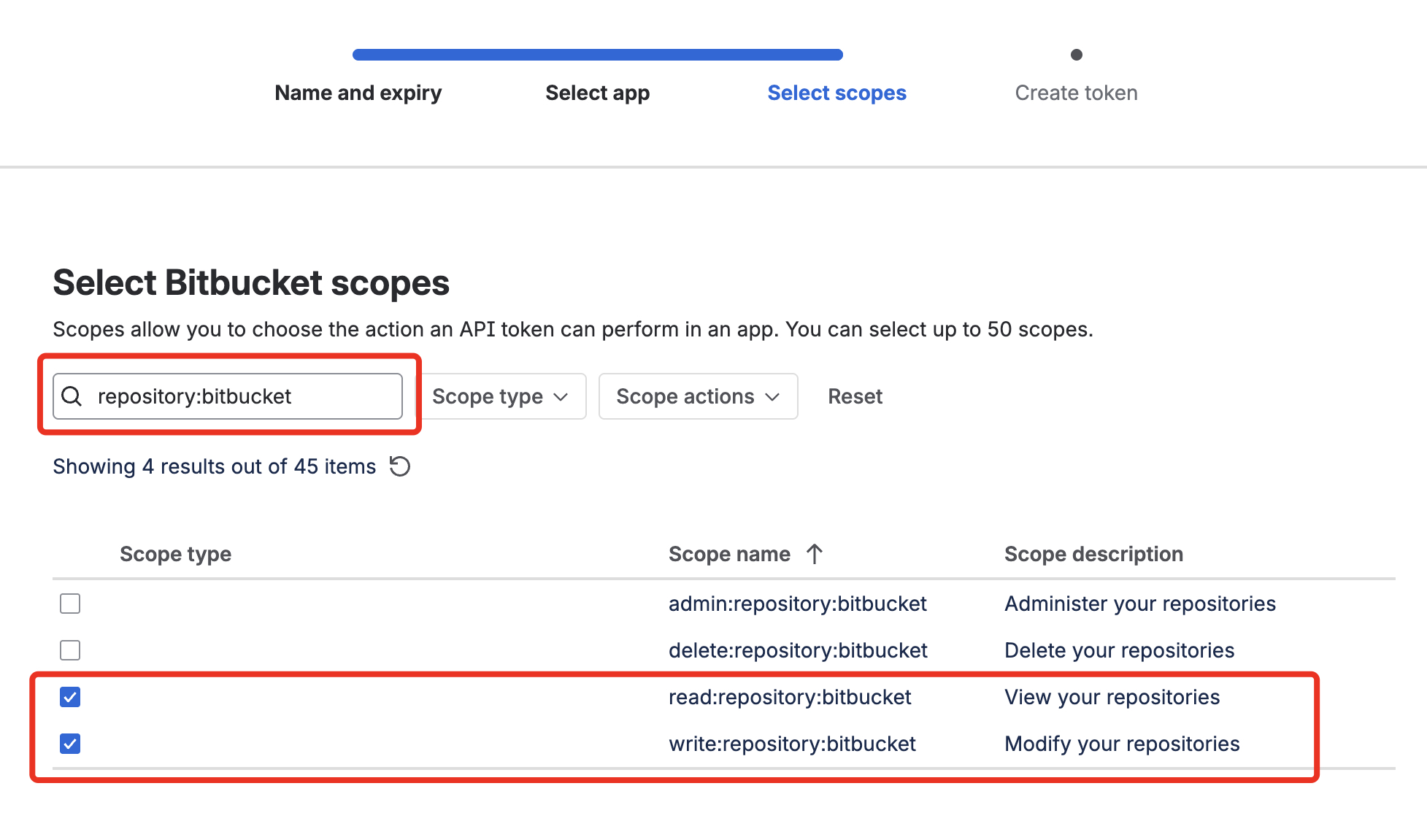
Important rule:
Use only the minimum permission needed. If the server only pulls code, do not give write, admin, or delete permission.
Step 6: Copy and store the token safely
After creating the token, copy it immediately.
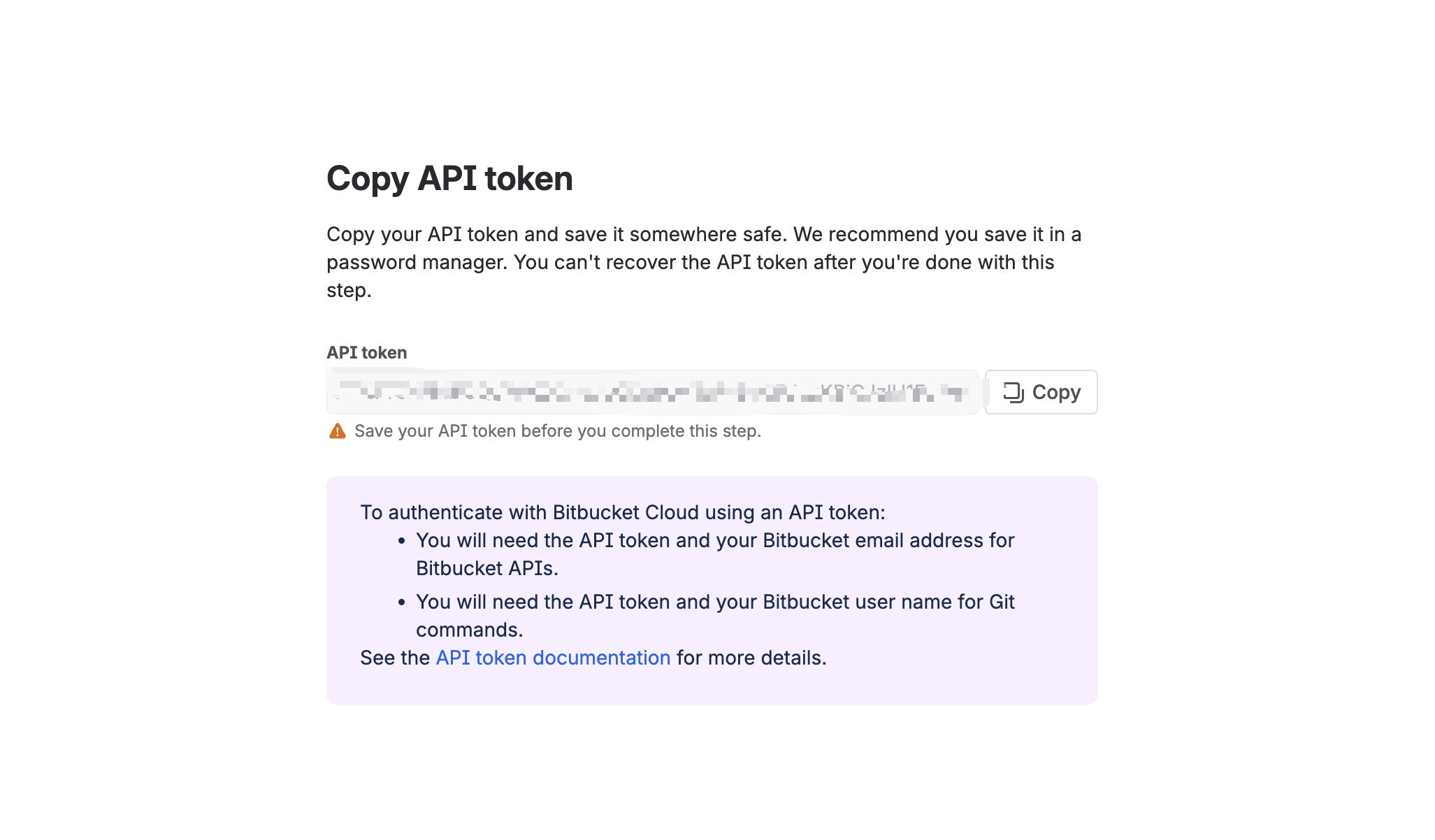
Important notes:
The token may only be shown once.
Do not send the token in public chat.
Do not put the token in source code.
Do not commit the token to Git.
Store the token in a password manager or secret manager.
5. Check the current Git remote
Before fixing the issue, check your current remote:
git remote -vExample output:
origin  https://bitbucket.org/anhtran/atdevblog.git (fetch)
origin  https://bitbucket.org/anhtran/atdevblog.git (push)
If the remote is using an old username or old HTTPS credential, you should update it to use the API Token authentication format.
6. Solution 1: Use API Token without putting the token in the remote URL
This is the recommended method if you are working on your local machine or on a server where you can enter the password manually.
Update the remote URL:
git remote set-url origin https://x-bitbucket-api-token-auth@bitbucket.org/anhtran/atdevblog.gitThen run:
git pullOr, if you need to push:
git push origin mainWhen Git asks for the password:
Password for 'https://x-bitbucket-api-token-auth@bitbucket.org':Paste your API Token.
When should you use this method?
Use this method when:
You are working on a local machine.
You do not want the token to appear in
git remote -v.You want a safer setup than putting the token directly in the URL.
Git can show a password prompt.
Advantages
Safer than storing the token in the remote URL.
The token is not visible in
git remote -v.Lower risk of exposing the token through
.git/config.
Disadvantages
If Git or Sourcetree is stuck with old credentials, it may still fail.
If the server deploy is fully automatic and cannot prompt for a password, this method may not work well.
7. Solution 2: Put the API Token directly in the remote URL
In some cases, Git or Sourcetree does not show the password prompt. It may keep using the old saved credential.
In that case, you can temporarily put the API Token directly in the remote URL.
git remote set-url origin https://x-bitbucket-api-token-auth:<TOKEN>@bitbucket.org/anhtran/atdevblog.gitThen run:
git push origin mainOr:
git pullWhen should you use this method?
This method is useful when:
You need a quick fix.
Git does not ask for a password.
Sourcetree keeps using old credentials.
You need to push or pull code urgently for a release or deployment.
Why does this method work?
It works because the token is passed directly inside the HTTPS URL. Git does not need to ask for a password again.
Security risk
Do not use this method as a long-term setup because the token may be exposed through:
git remote -vOr inside:
.git/configThe token may also appear in:
Shell history
Deployment logs
Server backups
Terminal screenshots
Internal documents
What should you do after fixing the issue?
After the pull or push works, change the remote back to the safer format:
git remote set-url origin https://x-bitbucket-api-token-auth@bitbucket.org/anhtran/atdevblog.gitThen check again:
git remote -vIf the token no longer appears in the remote URL, it is safer.
8. Solution 3: Remove old saved credentials
If you already updated the remote URL but still get:
fatal: Authentication failedyour machine may still be using old saved credentials.
Check the Git credential helper
git config --global credential.helperIf you are using macOS, credentials are often saved in Keychain.
If you are using Windows, they may be saved in Windows Credential Manager.
On macOS
Open:
Keychain AccessSearch for:
bitbucket.orgRemove the old Bitbucket credential.
Then run:
git pullGit should ask for the password again. Paste the new API Token.
On Windows
Open:
Credential Manager → Windows CredentialsFind any credential related to Bitbucket or bitbucket.org, then remove it.
In Sourcetree
If you use Sourcetree, check the account or authentication settings.
You may need to:
Remove the old Bitbucket account.
Add the Bitbucket account again.
Use the new API Token.
Check the repository remote URL.
9. Solution 4: Use SSH Key instead of HTTPS
If you manage a long-term deployment server, SSH key is often a better option than HTTPS with a personal token.
The SSH remote format is:
git@bitbucket.org:anhtran/atdevblog.gitChange the remote to SSH:
git remote set-url origin git@bitbucket.org:anhtran/atdevblog.gitCheck the remote:
git remote -vThen test:
git pullWhen should you use SSH?
Consider SSH when:
The server deploys code for a long time.
You do not want to store a personal API Token on the server.
You want to separate deployment access from a personal account.
Your project has a clear DevOps process.
Note
You need to create an SSH key on the server and add the public key to Bitbucket.
If you use a personal SSH key, manage access carefully.
If you use a deploy key or repository key, limit its permission to the required repository.
10. Solution 5: Use Repository Access Token for server deploy or CI/CD
If your goal is to allow one server, one script, or one CI/CD job to access one specific repository, a Repository Access Token can be a better choice.
This type of token is useful for automation, CI/CD, or deployment scripts because its permission is limited to one repository.
When should you use a Repository Access Token?
Use it when:
You only need to deploy one specific repository.
You do not want to use a personal API Token.
You want to manage access at repository level.
You have multiple servers or pipelines accessing the repository.
You want to revoke access easily later.
Recommended permission
If the deployment only runs git pull, use read-only access.
If the pipeline needs to push tags, push versions, or update code, only then consider write access.
11. Quick comparison of all solutions
Solution | Best for | Advantage | Disadvantage |
|---|---|---|---|
API Token without token in URL | Local machine or manual server operation | Safer, token is not shown in remote URL | May fail if old credential is cached |
API Token directly in URL | Quick fix when Git or Sourcetree does not ask for password | Easy and fast | Token is visible in |
Remove old credentials | Machine still using old App Password | Fixes credential cache issue | Steps depend on OS or tool |
SSH Key | Long-term deployment server | Stable and suitable for DevOps | Requires SSH key setup |
Repository Access Token | CI/CD, scripts, single-repo deployment | Limited to one repository and easier to manage | Must be configured correctly |
12. Common errors and how to fix them
Error 1: Token does not have repository permission
Symptom:
fatal: Authentication failedReason:
You created a token but did not select:
read:repository:bitbucketFix:
Create a new token with repository read permission.
If you need to push, also add:
write:repository:bitbucketError 2: Only read:me or read:account was selected
These scopes only allow access to account information. They are not enough for Git pull or Git push.
Fix:
Create a new token and select the correct repository scope.
Error 3: Token was created from an account that cannot access the repository
An API Token has the same access as the account that created it.
If that account cannot open the repository in Bitbucket, the token cannot pull or push code.
Fix:
Check whether the account has repository access.
Ask the workspace or repository admin to add the correct permission.
Create the token using an account with proper access.
Error 4: Token was copied incorrectly
API Tokens are usually long and may only be shown once.
If you copy only part of the token or include extra spaces, Git will fail.
Fix:
Revoke the old token.
Create a new token.
Copy it carefully.
Store it in a password manager.
Error 5: Confusing personal API Token with Repository Access Token
A personal API Token is usually used with:
x-bitbucket-api-token-authA Repository Access Token is a different type of token. It is more suitable for CI/CD or scripts that only need one repository.
Fix:
Know which token type you are using and follow the correct setup.
Error 6: Pull works but push fails
If git pull works but git push fails, your token probably only has read permission.
Fix:
Create a new token with:
write:repository:bitbucketThen try again:
git push origin main13. Quick checklist for developers and DevOps
Before deploying or fixing Bitbucket authentication, check:
git remote -vIf you use a personal API Token over HTTPS, the remote should look like this:
https://x-bitbucket-api-token-auth@bitbucket.org/anhtran/atdevblog.gitIf you need a quick fix with the token inside the URL, remember to change it back after it works:
git remote set-url origin https://x-bitbucket-api-token-auth@bitbucket.org/anhtran/atdevblog.gitMake sure the token has this scope:
read:repository:bitbucketIf you need to push:
write:repository:bitbucketDo not give these permissions unless needed:
admin:repository:bitbucket
delete:repository:bitbucket
Do not hardcode tokens in source code.
Do not commit tokens to Git.
Do not save tokens in README files or public scripts.
Do not take screenshots that show real tokens.
For long-term deployment servers, consider:
SSH Key
Repository Access Token
CI/CD Secret Variable
Secret Manager
14. Conclusion
If you see this error:
remote: App passwords are deprecated and must be replaced with API tokens.
fatal: unable to access ... The requested URL returned error: 410
or:
fatal: Authentication failedthe issue is probably related to old Bitbucket App Password authentication or an API Token with incorrect permissions.
The fastest fix is to create a Bitbucket API Token with the correct scope.
For pull-only access:
read:repository:bitbucketFor push access:
write:repository:bitbucketThen update the Git remote using the method that fits your case.
Safer method:
git remote set-url origin https://x-bitbucket-api-token-auth@bitbucket.org/anhtran/atdevblog.gitQuick fix when Git does not ask for a password:
git remote set-url origin https://x-bitbucket-api-token-auth:<TOKEN>@bitbucket.org/anhtran/atdevblog.gitBut after it works, change the remote back to the safer format.
The most important rule is:
Give only the minimum permission needed. If the server only pulls code, use read permission only. Add write permission only when you really need to push.
CTA
If you manage projects that use Bitbucket over HTTPS, check your servers, CI/CD pipelines, and deployment scripts now. It is better to update the authentication setup early than to discover the problem during a production hotfix or urgent release.