
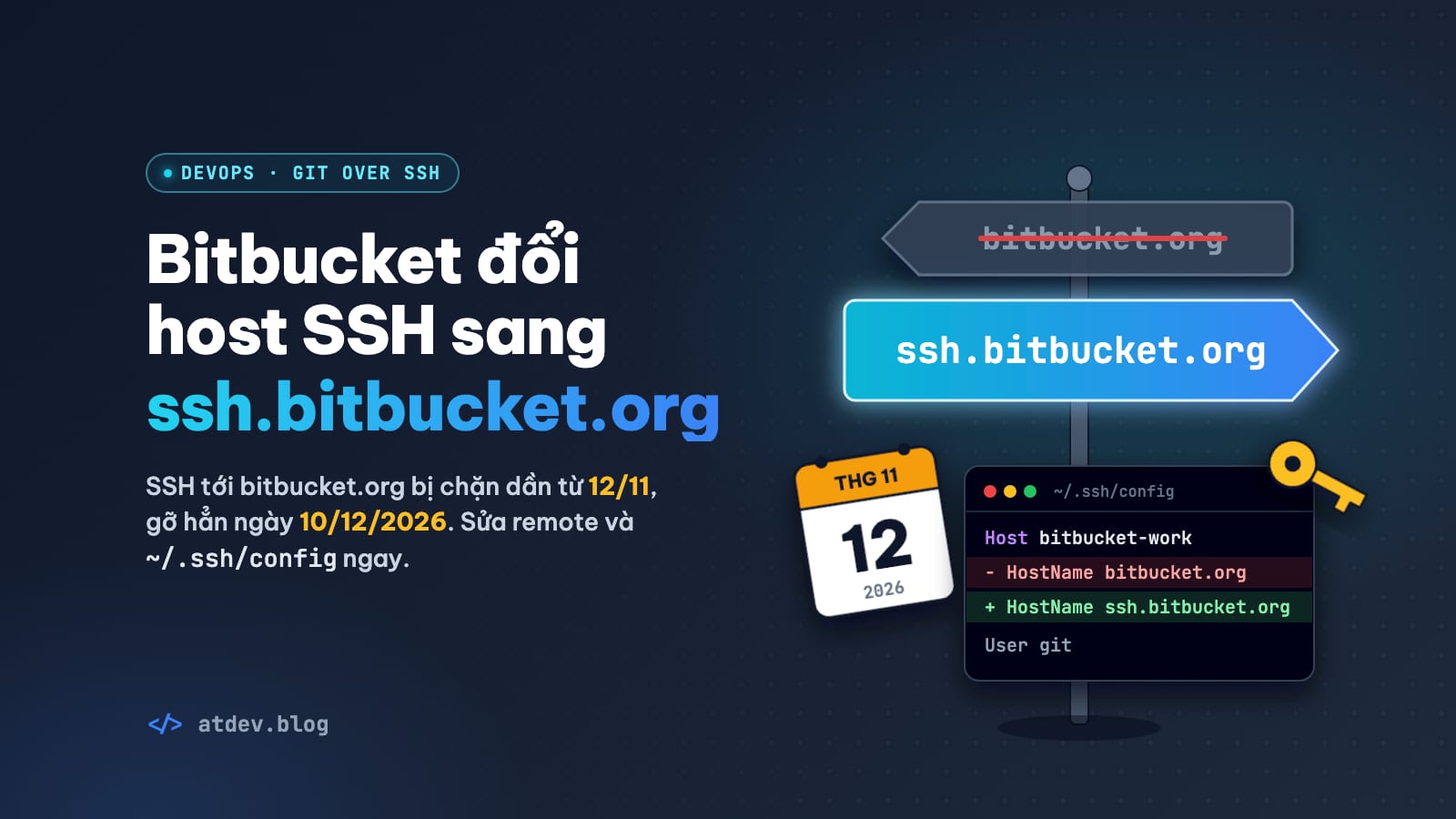
ssh.bitbucket.org: fix Bitbucket SSH before Nov 12 brownouts
Bitbucket Cloud moves Git over SSH to ssh.bitbucket.org: brownouts from Nov 12, removal Dec 10, 2026. Check laptops, servers, CI and fix Permission denied.
Bitbucket Cloud is moving all Git over SSH to a new host, ssh.bitbucket.org. The bitbucket.org name isn't going away, but it will only serve HTTPS: the website and the API. From November 12, 2026, SSH to bitbucket.org starts getting blocked in scheduled windows that grow longer each week, and on December 10, 2026 it's removed for good.
In practice, any machine that hasn't switched by November 12 will see git pull and deploys fail some of the time. That's the worst kind of failure to debug, because it looks exactly like a flaky network.
This guide goes in order: the brownout schedule, a one-minute check, the fix on your own machine, the fix on servers and CI, then a troubleshooting table for Permission denied (publickey), the error you're most likely to hit after the switch.
Every command here works on macOS, Linux and Windows. On Windows, run them in Git Bash.
The brownout schedule: SSH on bitbucket.org winds down until December 10
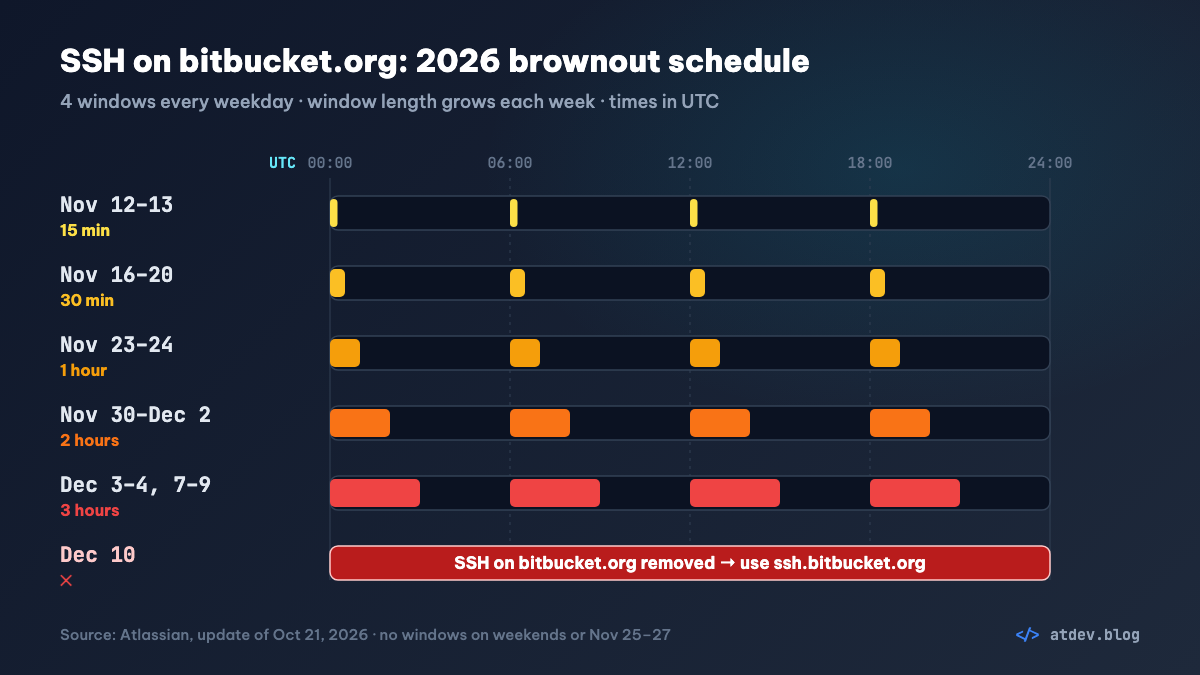
Atlassian first planned to switch off SSH on bitbucket.org on November 12, 2026. Their update of October 21, 2026 changed that: November 12 is now when the brownouts begin, a series of controlled outages meant to flush out anything still on the old host. During each window, SSH to bitbucket.org is blocked and returns an error.
| Dates (2026) | Each window lasts |
|---|---|
| Nov 12–13 | 15 minutes |
| Nov 16–20 | 30 minutes |
| Nov 23–24 | 1 hour |
| Nov 30–Dec 2 | 2 hours |
| Dec 3–4 and Dec 7–9 | 3 hours |
| Dec 10 | Final removal |
There are four windows a day, starting at 00:00, 06:00, 12:00 and 18:00 UTC. Weekends and November 25–27 are skipped. Convert those four times to your own time zone: in UTC+7, for example, they land at 07:00, 13:00, 19:00 and 01:00 the next morning.
If you have a deploy job or a code-sync cron that fires near one of those times, that's what will break first.
Who has to move to ssh.bitbucket.org, and who doesn't
You're affected if you clone, pull, fetch or push to Bitbucket Cloud over SSH. The fix only touches the host; the workspace, the repo name and your key stay the same:
git@bitbucket.org:<workspace>/<repo>.git
→ git@ssh.bitbucket.org:<workspace>/<repo>.git

ssh://git@bitbucket.org/<workspace>/<repo>.git
→ ssh://git@ssh.bitbucket.org/<workspace>/<repo>.git
Remotes that start with https:// are not affected. Bitbucket removing App Passwords is a separate change that hits HTTPS users; if that's where you're stuck, see switching to an API token.
Think beyond your laptop, too: deploy servers, cron jobs, deploy scripts and CI runners rarely get a second look. Anything still reaching bitbucket.org over SSH will fail during every brownout window, and for good from December 10.
The one-minute check
Both commands below only read. They change nothing.
Command 1: repos that still point straight at bitbucket.org. Replace ~/Projects with the folder that holds your code:
find ~/Projects -type d -name .git -prune 2>/dev/null | while read -r g; do d=${g%/.git}; git -C "$d" remote -v | grep -v "https://" | grep -qE "@bitbucket\.org[:/]" && echo "$d"; done
Every line it prints is a repo whose remote needs changing. HTTPS remotes are skipped. Remotes that go through an alias (like git@bitbucket-work:...) won't show up either; command 2 covers those.
Command 2: aliases in ~/.ssh/config that still point at bitbucket.org:
grep -iE '^\s*hostname\s+bitbucket\.org\s*$' -B3 ~/.ssh/config
It prints each HostName bitbucket.org line plus the three lines above it, so you can see which Host block it belongs to.
Which setup do you have?
| What you see | Setup | What to do |
|---|---|---|
Command 1 lists repos; there's no ~/.ssh/config, or it doesn't mention Bitbucket |
1 | Change the remote in each repo |
Command 2 shows an alias, such as Host bitbucket-work |
2 | Change HostName; no repo changes needed |
Your config has a Host bitbucket.org block with its own IdentityFile |
3 | Rewrite the Host block as shown below |
One machine can have more than one of these; fix them one at a time. Note that command 2 misses a Host bitbucket.org block with no HostName line, so open ~/.ssh/config and search for Host bitbucket.org to be sure.
Fixing your own machine
Step 1: add the host key for ssh.bitbucket.org
SSH needs the ssh.bitbucket.org host key in ~/.ssh/known_hosts. Without it, Git either stops with Host key verification failed or asks you to confirm the key, which cron jobs and scripts can't answer.
ssh.bitbucket.org uses the same three host keys as bitbucket.org. The first command pulls the official keys from bitbucket.org/site/ssh, renames the host and appends them to known_hosts (it does nothing if they're already there). The second prints the fingerprints so you can compare:
ssh-keygen -F ssh.bitbucket.org >/dev/null || curl -fsS https://bitbucket.org/site/ssh | sed 's/^bitbucket\.org /ssh.bitbucket.org /' >> ~/.ssh/known_hosts
ssh-keygen -l -F ssh.bitbucket.org
Compare them with these three (checked against bitbucket.org/site/ssh and Atlassian's announcement on October 23, 2026):
ED25519  SHA256:ybgmFkzwOSotHTHLJgHO0QN8L0xErw6vd0VhFA9m3SM
ECDSA    SHA256:FC73VB6C4OQLSCrjEayhMp9UMxS97caD/Yyi2bhW/J0
RSA      SHA256:46OSHA1Rmj8E8ERTC6xkNcmGOw9oFxYr0WF6zWW8l1E
All three match? Move on. If they don't, don't connect; open https://bitbucket.org/site/ssh in your browser and check again.
Step 2: back up your config
Before you edit ~/.ssh/config, keep a copy (skip this on setup 1 if you have no config file):
cp ~/.ssh/config ~/.ssh/config.bak
Step 3: apply the fix for your setup
Setup 1: no config, remotes use git@bitbucket.org directly
In each repo that command 1 listed, change the remote and check it:
git remote set-url origin git@ssh.bitbucket.org:<workspace>/<repo>.git
git remote -v
git remote -v should now show ssh.bitbucket.org. If the repo has other remotes pointing at Bitbucket (an upstream, say), swap origin for that remote's name and change it too.
Setup 2: an alias
Your remotes look like git@bitbucket-work:<workspace>/<repo>.git. In the alias block, change HostName bitbucket.org to HostName ssh.bitbucket.org and nothing else:
Host bitbucket-work
  HostName ssh.bitbucket.org
  User git
  IdentityFile ~/.ssh/bitbucket_work
  IdentitiesOnly yes
That's it. No repo needs touching: remotes only name the alias, and the real host lives on the HostName line. With several aliases (one per account, say), update each one.
Setup 3: a Host bitbucket.org block with its own IdentityFile
This is what our earlier SSH key guide taught, so plenty of readers are here:
Host bitbucket.org
  HostName bitbucket.org
  User git
  IdentityFile ~/.ssh/bitbucket_work
  IdentitiesOnly yes
The catch is the Host line. This block only applies when you connect to the exact name bitbucket.org. Change just the remote to git@ssh.bitbucket.org: and SSH stops using ~/.ssh/bitbucket_work, so Bitbucket turns you away with Permission denied (publickey).
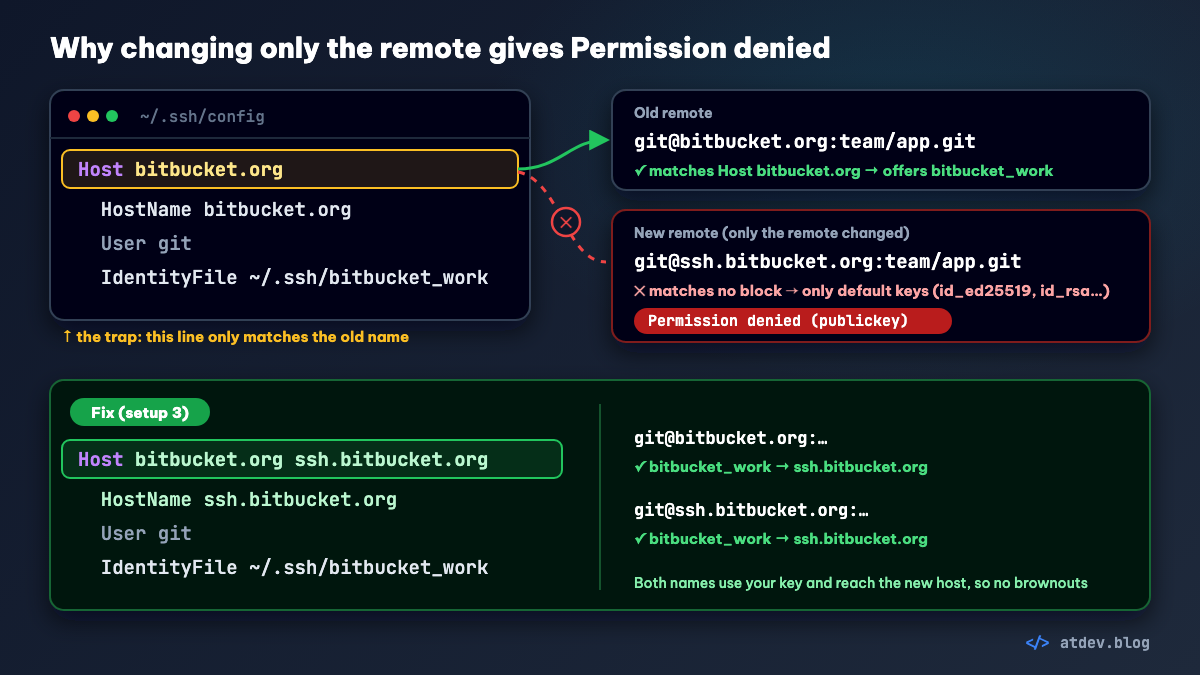
Rewrite the block as:
Host bitbucket.org ssh.bitbucket.org
  HostName ssh.bitbucket.org
  User git
  IdentityFile ~/.ssh/bitbucket_work
  IdentitiesOnly yes
The Host line now matches both names, and HostName always sends the connection to the new host. Old remotes (git@bitbucket.org:) and new ones (git@ssh.bitbucket.org:) both work and neither is hit by the brownouts, because the actual connection always goes to ssh.bitbucket.org. Switch your remotes as in setup 1 whenever it suits you. If your key file has a different name, keep the path you already use.
Step 4: see which key SSH will use
ssh -G ssh.bitbucket.org | grep -i '^identityfile'
On setup 3, bitbucket_work should be in the output. On setup 2, ask about the alias instead:
ssh -G bitbucket-work | grep -i '^identityfile'
The key listed should be the one you added to Bitbucket.
Step 5: test the login
ssh -T git@ssh.bitbucket.org
If you use an alias, test with the alias:
ssh -T git@bitbucket-work
You're in when you see authenticated via ssh key., along with a note that shell access is disabled. That note is expected. It isn't an error.
If your key has a passphrase, load it into ssh-agent. Git in a terminal will keep prompting you for the passphrase, but scripts, IDEs and cron won't prompt, so they fail with Permission denied.
On macOS:
ssh-add --apple-use-keychain ~/.ssh/bitbucket_work
On Windows (Git Bash) and Linux:
ssh-add ~/.ssh/bitbucket_work
Deploy servers and CI
Check every user
This is the part people miss. On a server, every user that runs git has its own ~/.ssh, so fixing deploy tells you nothing about root or www-data. List every user that runs git (the deploy user, the cron user, the web server's user if it calls git) and check each one.
The script below only reads and changes nothing. It checks the host key, remotes and aliases, tries a real login to ssh.bitbucket.org, and lists scripts or crontabs that still hardcode git@bitbucket.org.
curl -fsSLO https://raw.githubusercontent.com/atdevblog/docker-dev-manager/main/public/tools/bitbucket-ssh-check.sh
bash bitbucket-ssh-check.sh
The script reports in Vietnamese. The last line is the verdict: SẴN SÀNG (ready) or CHƯA (not yet), with the number of items left to fix.
To run it as another user without logging in again, download it to /tmp and use sudo -u:
cd /tmp && curl -fsSLO https://raw.githubusercontent.com/atdevblog/docker-dev-manager/main/public/tools/bitbucket-ssh-check.sh
sudo -u deploy -H bash /tmp/bitbucket-ssh-check.sh
Repeat the second line with deploy swapped for www-data, root and any other user that runs git.
For any user that comes back CHƯA, switch to that user and apply the same fixes as on your own machine: host key first, then setup 1, 2 or 3.
sudo -iu deploy
Crontabs and deploy scripts
Cron jobs and deploy scripts run with nobody at the keyboard: nobody types a passphrase, nobody answers a host key prompt. So:
- A clone or pull that hardcodes
git@bitbucket.org:→ change it togit@ssh.bitbucket.org:. - Add the host key as the cron user now, not after the first job fails in a brownout window.
- A deploy key with a passphrase → see the passphrase row in the troubleshooting table.
To see whether a user's crontab mentions bitbucket.org:
sudo crontab -u deploy -l | grep -n 'bitbucket\.org'
Bitbucket Pipelines
Any pipeline step that runs Git over SSH against Bitbucket (cloning another repo, pushing a tag…) needs its URL switched to ssh.bitbucket.org too.
The issue of Pipelines' default known_hosts missing ssh.bitbucket.org (BCLOUD-24132) has been closed by Atlassian as Fixed (checked October 23, 2026). If a step still stops at Host key verification failed after you change the URL, add the host key in that step's script with the command from Atlassian's announcement:
curl -s https://bitbucket.org/site/ssh | sed 's/bitbucket.org/ssh.bitbucket.org/' >> ~/.ssh/known_hosts
Bamboo
The bug where Bamboo didn't use the new SSH URL (BAM-26573) is fixed in 13.0.1, 12.1.12 and 10.2.24. If your Bamboo pulls from Bitbucket Cloud over SSH, upgrade to one of those, or a later release on the same line, and run a test build before November 12, 2026.
Deploy keys
A deploy key is still an SSH key, so the fixes are the same as on your own machine: a key under Host bitbucket.org → setup 3; one key per repo behind an alias → setup 2. Then, as the actual deploy user, go to the repo folder and run:
git fetch
Firewalls
If your company filters outbound SSH by hostname, allow ssh.bitbucket.org on port 22 and update any rule that references bitbucket.org for SSH. That's straight from Atlassian's announcement.
If your network blocks port 22 entirely, Atlassian has a separate guide for an alternate host and port. As of October 23, 2026, the announcement doesn't say whether that alternate host is affected by this change, so keep an eye on Atlassian's updates if you rely on it.
Fixing Permission denied (publickey) and other errors
| Symptom | Cause | Fix |
|---|---|---|
| From November 12, 2026, Git over SSH works some of the time | The machine still calls bitbucket.org and is hitting a brownout window |
Move to ssh.bitbucket.org as described in this guide |
Host key verification failed |
The ssh.bitbucket.org host key is missing |
Redo step 1: add the host key and compare fingerprints |
Permission denied (publickey) right after changing the remote |
Your key sits under a Host bitbucket.org block |
Use setup 3 |
Permission denied, and the key has a passphrase |
The key isn't loaded in ssh-agent. Git in a terminal still prompts for the passphrase; scripts, IDEs and cron don't | Load it with ssh-add (commands in step 5) |
Permission denied, and the key isn't on Bitbucket or belongs to another account |
Bitbucket doesn't accept this key for your account | Add the .pub file under Personal Bitbucket settings → SSH keys. One key can't be added to two accounts: create a separate key per account and use an alias (setup 2) |
| No key file | You never created one | Create a key (command below), then add the .pub file to Bitbucket |
| Connection timed out, can't connect | DNS trouble, or a firewall blocking ssh.bitbucket.org on port 22 |
See the firewall section above |
| Login works but push is rejected | Your account lacks permission on the repo, or the branch is protected | Ask a workspace admin for access, or review the branch protection rules |
Create a new key:
ssh-keygen -t ed25519 -f ~/.ssh/bitbucket_work
When you can't tell why a key is refused, turn on verbose output:
ssh -vT git@ssh.bitbucket.org
Look for the Offering public key lines: those are the keys SSH actually sends to Bitbucket. If the right key isn't among them, go back to step 4 and check your IdentityFile.
Automated check
Rather not run each command by hand? Docker Dev Manager is an open-source app I built that runs on your own machine: https://github.com/atdevblog/docker-dev-manager. Its Bitbucket SSH page gives you:
- One button that checks the host key, every repo and alias in
~/.ssh/config, a real login with each key, and any script or crontab that still hardcodesgit@bitbucket.org. - Fixes for the host key, aliases and remotes, shown to you as a preview first, with a backup of every file it changes.
Adding your key to Bitbucket is still up to you.
Checklist before November 12, 2026
- Run command 1 and command 2 on every personal machine.
- Add the
ssh.bitbucket.orghost key; the fingerprints match the three in this guide. - Back up
~/.ssh/config, then apply setup 1, 2 or 3. ssh -T git@ssh.bitbucket.orgprintsauthenticated via ssh key.- Keys with a passphrase are loaded with
ssh-add. - Servers: the check script run as every user that runs git (deploy, www-data, root…), all saying SẴN SÀNG.
- No crontab or deploy script still uses
git@bitbucket.org. - Pipelines and Bamboo: URLs switched and tested once.
- Deploy keys:
git fetchtested as the actual deploy user. - Firewall (if you have one):
ssh.bitbucket.orgallowed on port 22.
Clear this list before November 12 and the brownouts won't touch you. Want to rehearse Git commands before changing remotes on a real server? Try them in the Git Playground.
Sources
Related posts on atdev.blog:
- Set up an SSH key for Bitbucket: the older guide uses
bitbucket.org; this one updates it for the new host. - Use an API token for Git over HTTPS
References (checked October 23, 2026):
- Atlassian Community, Upcoming change to Bitbucket Cloud SSH access (the October 21, 2026 update has the brownout schedule): https://community.atlassian.com/forums/Bitbucket-articles/Upcoming-change-to-Bitbucket-Cloud-SSH-access-move-from/ba-p/3234032
- Bitbucket's official host keys: https://bitbucket.org/site/ssh
- BCLOUD-24132, Pipelines known_hosts: https://jira.atlassian.com/browse/BCLOUD-24132
- BAM-26573, Bamboo: https://jira.atlassian.com/browse/BAM-26573
- Port 22 is blocked on local network: https://support.atlassian.com/bitbucket-cloud/kb/port-22-is-blocked-on-local-network