
Odoo Custom Module: A Safe Lifecycle Guide
A complete overview of the Odoo custom module lifecycle: structure, models, security, safe install/upgrade/uninstall, and real-world pitfalls — with a no-data-loss checklist.
A good Odoo custom module is more than code that runs — it must install, upgrade, and uninstall without corrupting a customer's real data. This article is a top-down map of the entire Odoo custom module lifecycle: folder structure, model design, access rights, safe install/upgrade/uninstall, and the production bugs you'll actually hit. Each section links to a deep-dive when you need more.
This is what I've learned from years of deploying Odoo for real clients — where one wrong -u can drop a data column in seconds.
What a custom module is, and when you need one
In Odoo, almost every feature ships as a module. A custom module is one you write yourself to extend existing behaviour: add fields, add models, tweak views, or wire in your own business logic.
You need one when configuration isn't enough, when you must automate a specific workflow, or when integrating with an external system. Conversely, don't build a module if Studio or plain configuration already does the job.
New to this? Start with the fundamentals: What is a custom module in Odoo.
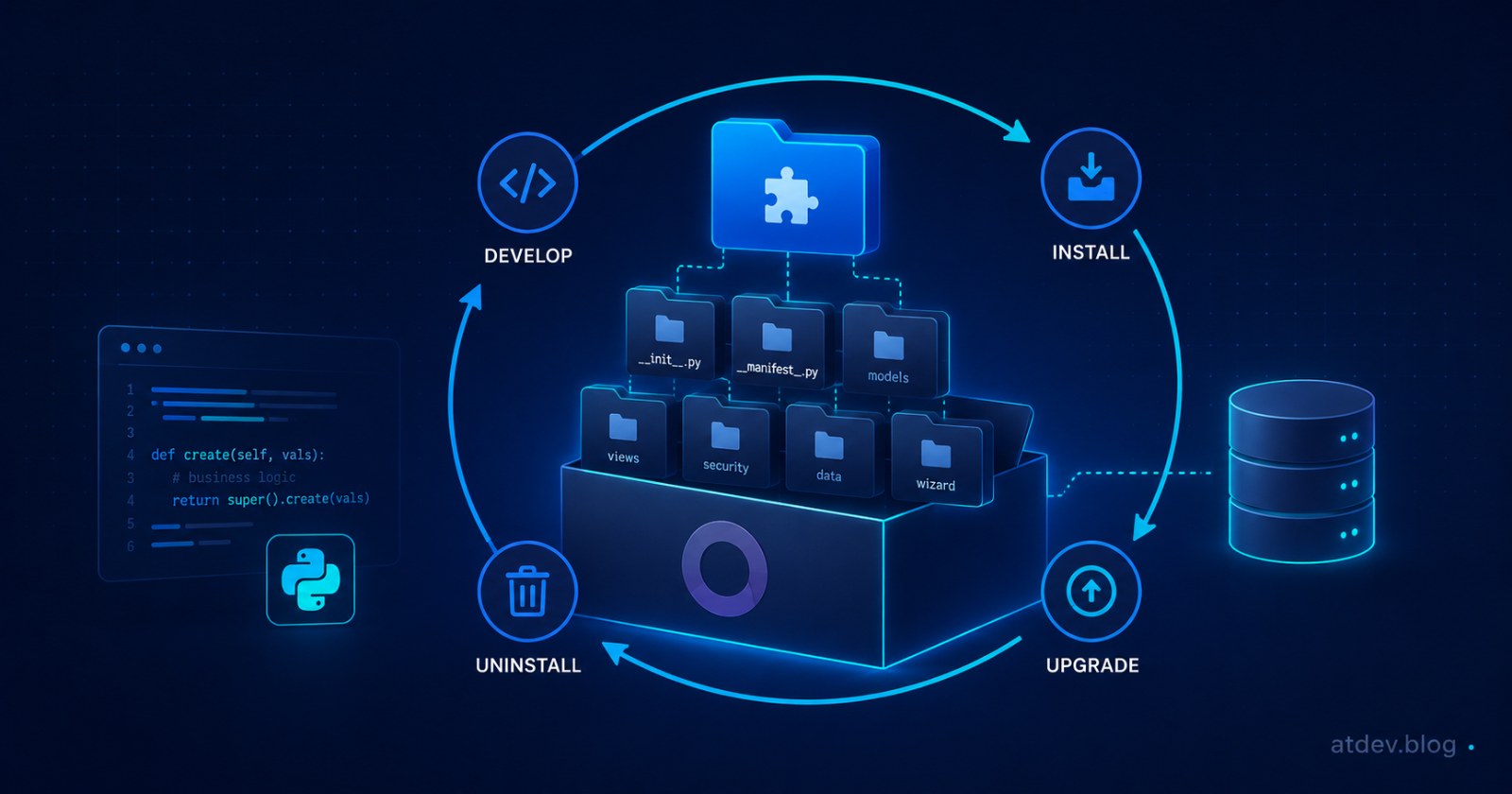
Anatomy of an Odoo custom module
Every module follows a familiar layout:
my_module/
├── __init__.py
├── __manifest__.py
├── models/
│   ├── __init__.py
│   └── my_model.py
├── views/
│   └── my_model_views.xml
├── security/
│   └── ir.model.access.csv
└── data/
The heart is __manifest__.py, declaring the name, version, dependencies, and the data files to load:
{
    'name': 'My Module',
    'version': '18.0.1.0.0',
    'depends': ['base', 'sale'],
    'data': [
        'security/ir.model.access.csv',
        'views/my_model_views.xml',
    ],
    'license': 'LGPL-3',
    'installable': True,
    'application': False,
}
About the version: use the 18.0.x.y.z format and bump it on every schema change, so you always know which build is live on production.
The lifecycle: four stages
A module moves through exactly four states — each with its own risk:
Develop: write code on a dev environment with
--dev=allfor fast reloads.Install (
-i): Odoo creates tables, columns, and access rights for the first time.Upgrade (
-u): Odoo diffs the new code against the old schema and applies changes.Uninstall: Odoo drops the module's tables, columns, and related data — with no undo.
Understanding the line between "upgrade" and "uninstall" is the single most important thing for not losing data.
Designing models and data
The model defines your data table:
from odoo import models, fields

class MyModel(models.Model):
    _name = 'my.model'
    _description = 'My Custom Record'

    name = fields.Char(required=True)
    partner_id = fields.Many2one('res.partner', string='Customer')
    amount = fields.Float()
Each my.model maps to a SQL table my_model. Before you write, sketch how your tables relate so you don't bake a bad design into the schema — paste the equivalent CREATE TABLE statements into the SQL → ERD tool to see Many2one/One2many relationships as a diagram.
Access rights: the part developers forget
Creating a model but forgetting its permissions is a classic mistake — the model becomes invisible to ordinary users. At minimum you need one line in ir.model.access.csv:
id,name,model_id:id,group_id:id,perm_read,perm_write,perm_create,perm_unlink
access_my_model,my.model.user,model_my_model,base.group_user,1,1,1,0
This grants the base user group read/write/create but not delete (perm_unlink=0). For sensitive data, lock down deletion and consider adding record rules.
Installing and upgrading safely
The core commands:
# First install
odoo-bin -c odoo.conf -d mydb -i my_module --stop-after-init

# Upgrade after code changes
odoo-bin -c odoo.conf -d mydb -u my_module --stop-after-init
Golden rules for production:
Always back up the database before running
-u.Test on staging (a copy of the real DB) first, then go to production.
Avoid
-u allon large systems when you only changed one module.
Uninstalling: where data loss happens
This is the most dangerous trap. Uninstalling a module drops the tables and columns it created — including data your customers entered. Before you click Uninstall, read:
Odoo module uninstall and the data-loss risk — why it can't be undone and how to protect yourself.
Performance and common production bugs
A module that flies on dev can still break under real load. The two cases I hit most:
Typing lag (especially the POS screen): see Fixing Odoo 18 POS payment screen lag.
WebSocket timeouts after deploying behind a proxy: see When you need to fix WebSocket timeout in Odoo.
Developing safely with AI
AI speeds module development up, but a careless prompt can generate code that wipes data. I collected a set of safer prompts here: Prompts for safe Odoo custom module delivery.
Pre-production checklist
Bumped the
versionin the manifest.Declared permissions in
ir.model.access.csv.Backed up the DB and tested
-uon staging.Checked performance with large datasets.
Confirmed uninstall behaviour (no accidental deletion of data you need)..
Related tools
I built two free tools to scaffold modules fast — both produce a standards-compliant 17/18/19 module:
Odoo Module Generator — generate a module in the browser: manifest, model, views, security, an auto icon (from the name/deps), and Vietnamese i18n → download the
.zip.create-odoo-module (open-source CLI) —
npx github:atdevblog/create-odoo-module …, zero-dependency, with an optional model (skip it for modules that only inherit views or add data).
Conclusion
A safe Odoo custom module is one you control across its whole lifecycle — not just while writing it. Master the four install/upgrade/uninstall stages, never skip access rights, and always back up before touching a production schema.
Next step: sketch your data model with the SQL → ERD tool, scaffold a clean module skeleton with the Odoo Module Generator, then dive into each topic through the linked deep-dives above.